有时,开发人员需要在一个 Word 文档中为不同的部分添加页码,例如封面、目录和内容位于不同的部分。本文讨论如何通过Spire.Doc为不同部分添加页码。
Spire.Doc for.NET 最新下载 https://www.evget.com/product/3368/download
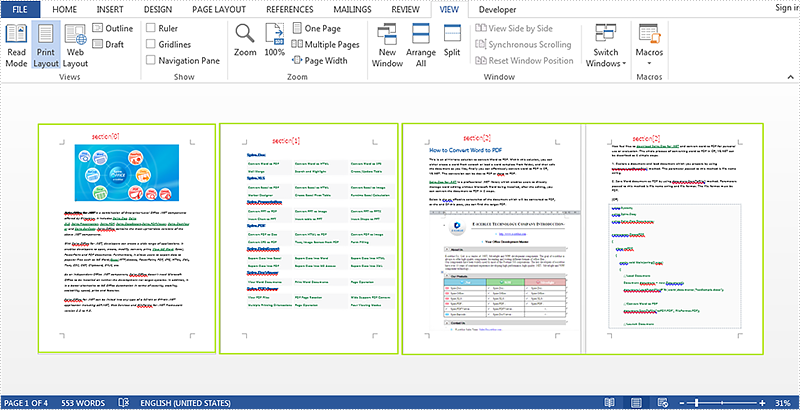
这里将在 3 个部分内导入一个测试文档,如下图所示。
以下是详细步骤:
第 1 步:创建一个新文档并加载测试字文件。
Document document = new Document("test.docx");
第 2 步:为第一部分创建页脚并在其中添加页码。
HeaderFooter footer = document.Sections[0].HeadersFooters.Footer;
Paragraph footerParagraph = footer.AddParagraph();
footerParagraph.AppendField("page number", FieldType.FieldPage);
footerParagraph.AppendText(" of ");
footerParagraph.AppendField("number of pages", FieldType.FieldSectionPages);
footerParagraph.Format.HorizontalAlignment = HorizontalAlignment.Right;
第 3 步:重新开始下一节的页码,并将起始页码设置为 1。
document.Sections[1].PageSetup.RestartPageNumbering = true;
document.Sections[1].PageSetup.PageStartingNumber = 1;
第 4 步:对其余部分重复第 2 步和第 3 步,因此使用 for 循环更改代码。
for (int i = 0; i < 3; i++)
{
HeaderFooter footer = document.Sections[i].HeadersFooters.Footer;
Paragraph footerParagraph = footer.AddParagraph();
footerParagraph.AppendField("page number", FieldType.FieldPage);
footerParagraph.AppendText(" of ");
footerParagraph.AppendField("number of pages", FieldType.FieldSectionPages);
footerParagraph.Format.HorizontalAlignment = HorizontalAlignment.Right;

if (i == 2)
break;
else
{
document.Sections[i + 1].PageSetup.RestartPageNumbering = true;
document.Sections[i + 1].PageSetup.PageStartingNumber = 1;
}
}
第 5 步:保存并查看。
document.SaveToFile("result.docx", FileFormat.Docx);
System.Diagnostics.Process.Start("result.docx");
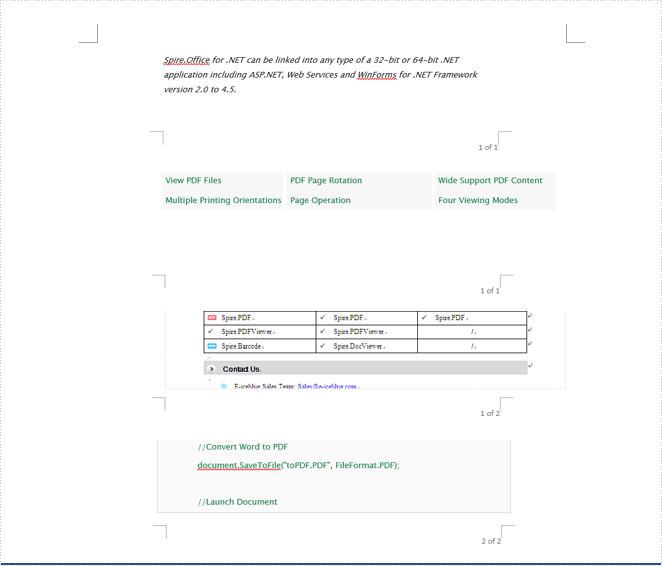
结果截图: